
A faster internet plan may leave that problem unchanged.
For this guide, we reviewed technical guidance from device manufacturers, router makers and networking companies. We used that research to build a practical testing process. It starts with the equipment you already have and helps you decide what to change next.
First, find out whether the problem follows the room or the device
Start with one phone or laptop. Test it in three places:
- In the same room as the router.
- Where you normally have trouble.
- At the doorway of the problem room.
Then repeat those tests with another device.
Use the same speed-test service in each location. Pause large downloads and backups during the comparison. Run the tests one at a time.
You are looking for a pattern.
| What happens | What to do next |
|---|---|
| Both devices slow down in the same room | Check the signal path, nearby interference and mesh placement |
| One device is slow while the other works | Check the affected device before changing the whole network |
| Both devices are slow near the router too | Check the wider network and internet connection |
| Moving to the doorway makes a large difference | Investigate obstacles and equipment placement |
| The problem appears only when the network is busy | Compare performance during and after that activity |
These results narrow the search. They do not identify every possible fault.
For example, two devices can struggle in a room because the signal is weak. They can also struggle because both connect to the same poorly placed mesh unit. The next test should separate those possibilities.
Understand the connection you are testing
Your device reaches the internet through several pieces of equipment.
A simple home network follows this path:
Your device → Wi-Fi router → modem or fiber terminal → internet provider
Some homes use a single box that combines several of these functions.
A mesh network can add another step:
Your device → nearby mesh unit → main router → internet provider
The connection between mesh units is called backhaul. It may use Wi-Fi or an Ethernet cable.
This matters because a strong signal from the nearest unit does not prove that the whole path is good. Your phone might connect well to a bedroom mesh unit while that unit struggles to reach the main router.
The location of a speed test matters too.
A test built into your router may measure the connection between the router and the internet. A test on your laptop also includes the path from the router to that laptop.
Both results can be correct, even when they differ greatly.
What to do next: Check the description of your router’s test. Find out whether it measures internet speed, the connection between mesh units or the connection to your device.
Run a fair comparison
One speed test can give you a misleading result. Network activity, the test server and the device can affect the measurement.
Use a repeatable process.
Use the same device first
Do not compare a new phone near the router with an old laptop in the bedroom. That changes both the location and the hardware.
Move the same device between the test locations.
Keep its position similar. Test a laptop on a desk rather than comparing it with the same laptop inside a bag or behind a large monitor.
Run three tests in each location
Write down the middle result for download and upload speed.
If your download results are 40, 115 and 120 Mbps, record 115 Mbps as the middle result. Also note that the results varied widely.
A connection that sometimes reaches a high speed can still be unreliable.
Record when you test
If the problem happens every evening, repeat the comparison in the evening.
A quiet morning result may not represent a busy network later in the day.
Watch for another connection taking over
A phone may use cellular data when Wi-Fi performs poorly. Check that the test is using the connection you intend to measure.
Also record whether a VPN is active. If your rules allow it, compare performance with and without the VPN. Keep a required work VPN active and ask your IT team to help test it.
Use a simple worksheet:
| Location | Device | Download | Upload | Interruptions or other notes |
|---|---|---|---|---|
| Near router | First device | Your result | Your result | Your notes |
| Problem room | Same device | Your result | Your result | Your notes |
| Doorway | Same device | Your result | Your result | Your notes |
| Problem room | Second device | Your result | Your result | Your notes |
The useful result is the pattern across these tests, not the highest number you see.
Read the results correctly
Download speed is only one part of connection quality.
A television downloading video has different needs from a laptop sending live audio and video. A large file can arrive quickly even when short interruptions make a call difficult.
| Measurement | Plain meaning | Where you may notice a problem |
|---|---|---|
| Download speed | How quickly your device receives data | Slow downloads or video buffering |
| Upload speed | How quickly your device sends data | Slow backups or poor outgoing video |
| Latency | The delay in a measured data trip | Lag during calls, games or remote work |
| Jitter | How much that delay changes | Uneven audio or video |
| Packet loss | Some test data does not arrive | Interruptions, retries or unstable calls |
| Loaded latency | Delay while the connection is busy | Calls deteriorate during downloads or uploads |
Cloudflare includes these measurements in its connection-quality assessment. It evaluates how a connection performs for streaming, gaming and real-time communication. Cloudflare’s connection-quality measurements.
You do not need to become a network engineer to use the results. Match them to the problem you experience.
If a download is slow, compare download speed. If calls freeze, also examine delay, jitter and packet loss.
Check the units
Internet plans usually show megabits per second, written as Mbps. Download applications may show megabytes per second, written as MB/s.
Eight bits equal one byte.
A 100 Mbps connection therefore has a theoretical ceiling of 12.5 MB/s before overhead and other limits. A file downloading at 10 MB/s is not downloading at 10 Mbps.
Keep the units consistent when you compare results.
If the doorway is much faster, check the signal path
A large improvement over a short distance is a useful clue.
The doorway may provide a clearer path to the router. The desk or bed may sit behind a wall, cabinet or large appliance.
Look at the route between the router and the affected device.
Common obstacles include:
- Dense masonry or concrete.
- Metal cabinets and shelving.
- Large appliances.
- Foil-backed building materials.
- Several walls along the same path.
Distance matters, but the materials between the devices matter too. Two rooms can be close together and still have very different coverage.
Microsoft’s home-layout guidance identifies building materials, physical obstacles and router placement as factors in wireless performance. Microsoft’s guide to Wi-Fi and home layout.
Try a placement change you can measure
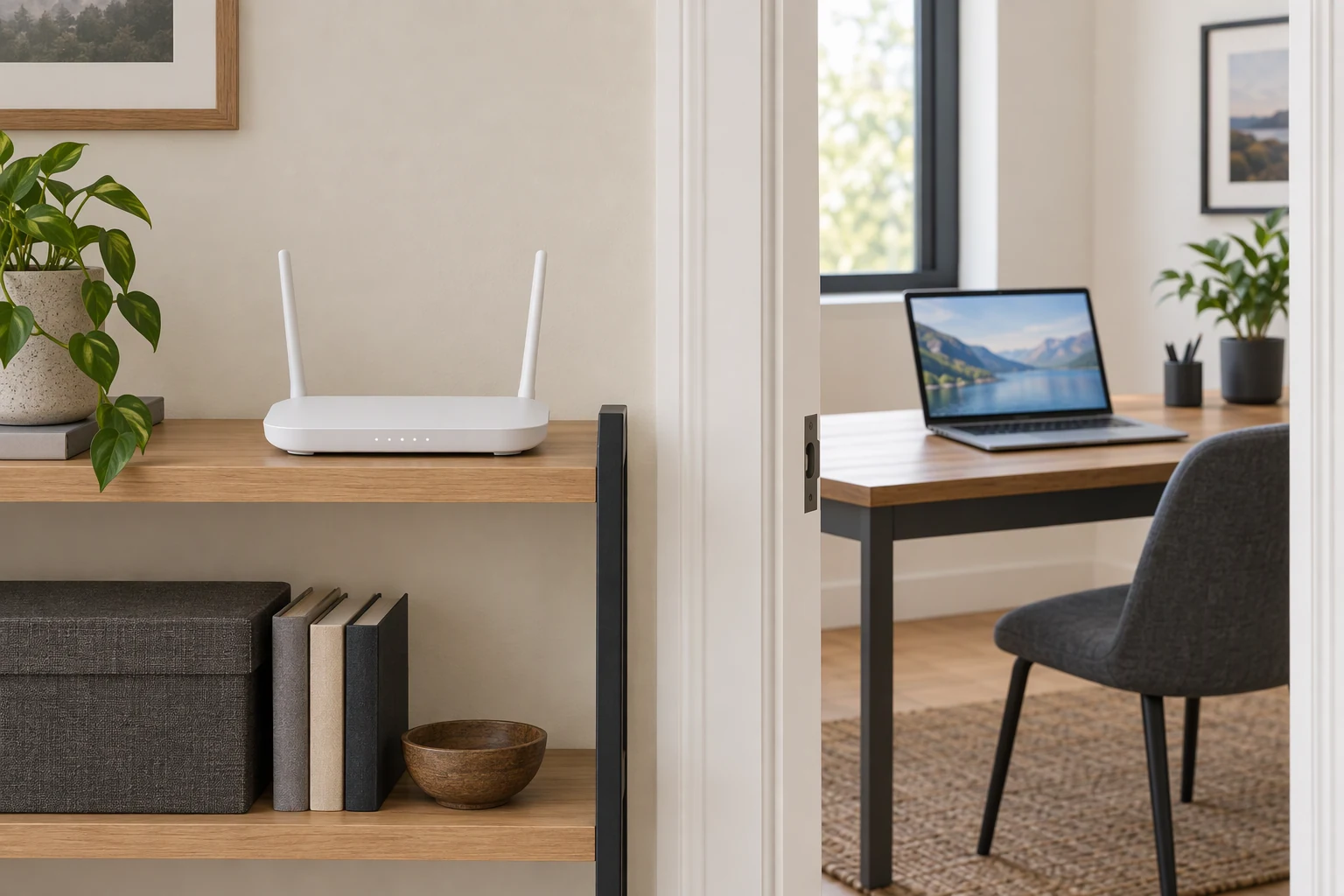
Move the router away from nearby objects. Raise it from the floor. Test an open shelf rather than a cabinet.
If the cables allow it, try a more central position.
Then repeat the same room tests. Do not change the channel, add an extender and move the router at the same time. You would lose the ability to identify which change helped.
What to do next: Keep a placement change only when it produces a repeatable improvement where you use the connection.
Check whether another Wi-Fi band works better
Many routers support more than one frequency band. The main home Wi-Fi bands are 2.4 GHz, 5 GHz and, on compatible equipment, 6 GHz.
The best choice depends on the location and equipment.
| Band | What it can offer | What to check |
|---|---|---|
| 2.4 GHz | Often reaches farther through a home | Congestion and available capacity |
| 5 GHz | Often provides higher speeds with a suitable signal | Performance through walls and at greater distances |
| 6 GHz | Additional spectrum for compatible devices | Device support, local availability and coverage |
These are general differences. They do not guarantee a particular result in your home.
A laptop may work well on 5 GHz beside the router but become unstable in a distant room. A 2.4 GHz connection may be steadier there, even if it has a lower peak speed.
Intel describes these trade-offs between range, capacity, interference and compatibility. Intel’s comparison of Wi-Fi bands.
How to compare bands
Check your router’s app or connected-device page. It may show which band the device uses.
Some routers display separate network names for each band. Others use one name and select the band automatically.
If the manufacturer provides a supported way to test another band, compare it in the problem room. Record both reliability and speed.
You do not need to keep separate network names permanently just to run this test.
Wi-Fi 6 does not necessarily mean 6 GHz
The names describe different things.
Wi-Fi 6 is a Wi-Fi generation. The term 6 GHz describes a frequency band. Wi-Fi 6E extends Wi-Fi 6 into that band.
Check the exact specifications of both devices. A Wi-Fi 6 label alone does not confirm 6 GHz support. ASUS’s explanation of Wi-Fi 6E.
If the connection changes during the day, look for interference
A room may work well at one time and poorly at another.
That pattern deserves a closer look before you buy equipment.
Record what is happening when the connection becomes unreliable. Check whether a nearby appliance operates, another device starts transferring data or the problem changes when you move.
Google’s interference guidance identifies nearby electronics and physical obstacles as possible causes. It also notes that moving equipment a small distance can affect signal quality. Google’s wireless-interference guidance.
Try one practical change:
- Move the affected device away from nearby electronics.
- Move the router clear of a television or large appliance.
- Compare another supported band.
- Repeat the test at the same time on another day.
A long list of neighboring Wi-Fi names does not, by itself, prove that your network is congested. The list does not show how much traffic each network carries.
Look for changes in actual performance.
If only one device struggles, investigate that device
A router replacement is a poor first response when other devices work well in the same spot.
Start with the affected device:
- Restart it.
- Confirm that it joined the intended network.
- Check for operating-system and manufacturer-provided wireless updates.
- Test another website or application.
- Compare its performance near the router.
A problem limited to one application may have a different cause from a problem affecting the whole device.
Microsoft’s Wi-Fi troubleshooting process includes connection checks, wireless-adapter settings and driver updates. Microsoft’s Wi-Fi troubleshooting guide.
Keep the comparison tied to the same task. If calls fail on a laptop, compare calls on another suitable device. A quick page load on a phone does not prove that a long video call will remain stable.
What to do next: If the same device fails in several locations while others work, collect its model, software version and test results before seeking device support.
If calls fail during uploads or downloads, test network load
Coverage is not the only reason a room becomes difficult to use.
A cloud backup, large download, camera upload or file transfer can affect other traffic. The connection may feel fine until that activity begins.
Test the task that normally fails.
For example:
- Start a call from the problem location.
- Begin the usual upload or backup.
- Note whether the call changes.
- Pause the transfer.
- Check whether the call improves.
Repeat the comparison near the router. If the same problem occurs there, room coverage may not be the main cause.
Some routers provide traffic-priority controls, often called Quality of Service or QoS. These settings can prioritize selected applications or devices. Features vary by model. ASUS documents application-priority controls through its Adaptive QoS system. ASUS’s explanation of Adaptive QoS.
A priority setting does not create more capacity. It changes how competing traffic is handled.
What to do next: Review the activity causing the problem before changing priority settings. Scheduling a large backup for another time may resolve the immediate conflict.
If you use mesh Wi-Fi, test the connection between units
A mesh unit needs a usable connection to the rest of the network.
This is easy to overlook. The nearby unit may give your phone a strong signal while receiving a weak connection from the main router.
Check the mesh system’s connection report. Find out which unit serves the problem room and how that unit connects upstream.
Google’s mesh test measures connections between its Wi-Fi units. A weak result calls for a placement review. Google’s mesh-test guidance.
Move the unit toward a good connection
A wireless mesh unit placed deep inside a dead zone may struggle to receive the signal it needs.
Try a position along the route between the main router and the weak room. A hallway or open landing may work better than a socket behind furniture.
Eero advises against placing units directly inside dead zones. Its guidance favors locations where the units can communicate effectively. Eero’s placement guidance.
There is no universal distance that works for every home. Walls, floors and equipment change the result.
Move the unit, run the mesh test again, then test your device inside the room.
Confirm which unit your device uses
After a placement change, check the connected-device list again.
Your laptop may remain connected to a more distant access point. That can make a good placement change look ineffective.
Record the connected unit when your system shows it. This helps explain differences between tests.
Adding another mesh unit should address a measured coverage gap. First check whether the units you already own are positioned well.
Use a wired test to separate Wi-Fi from other problems
An Ethernet comparison can remove one wireless connection from the test.
Connect a suitable laptop to a LAN port on the main router. Turn off that laptop’s Wi-Fi during the comparison so you know which connection it uses.
Run the same speed test.
If the wired result is good but Wi-Fi remains poor, focus on the wireless path. If both are poor, investigate the wider connection and equipment.
Check the cable, adapter and port capabilities too. They can limit a wired result.
Google’s troubleshooting guidance specifically calls for checking Ethernet cables and port ratings when equipment limits network speed. Google’s slow-connection troubleshooting guide.
A cable to a mesh unit is a different test
Connecting a laptop by Ethernet to a wireless mesh unit does not remove the mesh unit’s wireless connection back to the router.
It only removes the Wi-Fi link between the laptop and that unit.
Write down where the cable connects. “Wired to the main router” and “wired to a wireless mesh unit” describe different paths.
That detail changes what your result can prove.
Read the pattern before choosing equipment
The results below are illustrative. They show how a test pattern can guide the next step.
They are not measurements from a home we tested.
Example: a room-specific drop
| Test location or connection | Illustrative download result |
|---|---|
| Laptop wired to the main router | 450 Mbps |
| Same laptop on Wi-Fi near the router | 350 Mbps |
| Same laptop at the bedroom doorway | 120 Mbps |
| Same laptop at the bedroom desk | 18 Mbps |
The large change between the doorway and desk makes the room’s signal path worth investigating.
The next step would be a controlled placement or coverage test. A faster internet plan would leave that weak wireless path unresolved.
Example: poor results throughout the home
Suppose wired and wireless tests both perform poorly, including tests near the main router.
That pattern gives you less reason to focus on the bedroom alone. Check network activity, wired equipment, service conditions and the test setup.
Example: only one laptop fails
Suppose a laptop repeatedly drops calls while another device works at the same desk.
Investigate the laptop and its connection first. Compare software, supported bands and the access point each device uses.
These examples do not identify a fault on their own. They help you choose a useful next test.
Choose the fix that addresses the weak connection
Different equipment solves different problems.
| Option | What it changes | When it may fit |
|---|---|---|
| Move the router | Changes the existing signal path | Small location changes improve performance |
| Move a mesh unit | Improves its connection to the network | The mesh connection tests poorly |
| Add a wireless extender | Repeats a wireless connection | One area needs coverage and a suitable placement exists |
| Add a compatible mesh unit | Extends an existing managed system | Testing shows a gap the current units cannot cover |
| Install a wired access point | Carries the network by cable, then provides nearby Wi-Fi | A cable route is available |
| Connect a stationary device by Ethernet | Removes that device’s Wi-Fi link | A computer, television or console needs a wired connection |
A wireless extender needs a good incoming signal
An extender must receive a usable connection before it can provide useful coverage.
Putting it in the room with the worst signal may give it too little to work with. Test a position between the router and that room.
Some repeaters share radio resources between receiving and retransmitting traffic. That can reduce available capacity. The result depends on the equipment and connection.
Avoid treating “an extender halves speed” as a fixed rule for every product. Measure the full connection with your device.
A wired access point changes the path
A wired access point receives its network connection through Ethernet and provides Wi-Fi nearby.
Some extenders also support access-point mode. In that mode, an Ethernet cable supplies the connection instead of a wireless link back to the router. Check the exact model before relying on this feature. TP-Link’s explanation of access-point mode.
This approach can help where a wall or floor makes a wireless link difficult.
Wired mesh backhaul can remove another wireless dependency
Some mesh systems allow Ethernet between units. Your phone or laptop can still use Wi-Fi to reach the nearby unit.
Check the supported ports and wiring layout. Not every mesh unit has an Ethernet port, and compatible arrangements vary. Google’s wired-backhaul guidance.
A cable between units does not remove every limit. The access point, ports, cable, device and internet service still affect performance.
Review router settings carefully
Placement and comparison tests should come before random setting changes.
If those tests do not resolve the problem, review the manufacturer’s guidance for your exact router.
Record the original setting before changing it. Change one item, repeat the test and compare the result.
Channels and channel width
A channel is part of the radio space your network uses. Channel width describes how much of that space the connection occupies.
A wider channel can support more capacity under suitable conditions. It also uses more spectrum.
Apple recommends 20 MHz width on 2.4 GHz. For 5 GHz and 6 GHz, it recommends automatic or all supported widths. Its guidance also recommends automatic channel selection. Apple’s recommended router settings.
Follow the product’s supported settings and test the result in your home.
Keep security active
Do not use an open network as a permanent performance fix.
Apple recommends WPA3 Personal, or WPA2/WPA3 Transitional where compatibility requires it. A secure, compatible setup should remain part of the working configuration. Apple’s security recommendations.
If a particular device connects only with an older setting, check its manufacturer’s support guidance before changing the whole network.
Optional: test the local connection to your router
A gateway ping can provide another clue. It checks whether your computer receives replies from the local router.
On Windows:
- Open Command Prompt.
- Enter ipconfig.
- Find the active Wi-Fi adapter.
- Note the address beside Default Gateway.
- Run a short ping test to that address.
For example, if your gateway is 192.168.1.1, enter:
ping -n 30 192.168.1.1Use your actual gateway address. The address above is an example.
Repeat near the router and in the problem room. Look for lost replies or large differences in response time.
Microsoft includes a gateway-ping check in its Wi-Fi troubleshooting process. Microsoft’s gateway-ping instructions.
Treat the result as supporting evidence. Some equipment limits or ignores ping replies. A successful short test also does not prove that a long call will remain stable.
Check that the fix works during normal use
A higher speed-test result is useful only if the room now supports your task.
After a change, return to the place where the problem occurred.
Make the call. Stream on the television. Upload the file. Test while other people use the network.
Stay connected long enough to catch the interruptions you previously noticed.
Your goal is a reliable connection where you use the device. It does not have to match the highest speed available beside the router.
Keep a record of changes:
| Change | What happened afterward | Keep or reverse? |
|---|---|---|
| Router moved to an open shelf | Your result | Your decision |
| Mesh unit moved toward the hallway | Your result | Your decision |
| Another supported band tested | Your result | Your decision |
| Large upload paused | Your result | Your decision |
| Ethernet connection tested | Your result | Your decision |
This record also helps if you need support later. You can show which changes helped and which made no difference.
What to send your provider or installer
If the problem remains, send the evidence you collected.
Include:
- Router and mesh model names.
- The affected devices.
- A simple drawing of the rooms and equipment.
- Wired and wireless test results.
- The times when the problem occurs.
- Any mesh warnings or connection reports.
- The changes you tried and their results.
Describe the failure precisely.
“The laptop drops calls at the bedroom desk, but works at the doorway on two devices” gives support a clear starting point.
“The internet is bad” leaves them to repeat the first checks.
If wired tests also fail, include those results. If only one device fails, say so. The distinction helps support focus on the right connection.
How we researched this guide
We reviewed published guidance from Apple, Microsoft, Google, Intel, Cisco Meraki, Cloudflare, eero, ASUS and TP-Link.
We compared their explanations of coverage, interference, device differences, mesh placement and connection testing. We then organized the checks so readers can separate these causes before choosing equipment.
This is a source-based troubleshooting guide. We did not conduct controlled router benchmarks or measure performance inside readers’ homes. The example figures illustrate how to interpret a test pattern.
Product features and settings vary. Use the linked guidance and the instructions for your exact equipment when applying a change.
Sources and review
Fact-checked by BEY Rentals on November 13, 2026. This is a review of published technical guidance. We did not conduct controlled router benchmarks or measure performance inside readers’ homes. Example speeds are illustrative.
- Cloudflare’s connection-quality measurements
- Microsoft’s guide to Wi-Fi and home layout
- Intel’s comparison of Wi-Fi bands
- ASUS’s explanation of Wi-Fi 6E
- Google’s wireless-interference guidance
- Microsoft’s gateway-ping instructions
- ASUS’s explanation of Adaptive QoS
- Google’s mesh-test guidance
- Eero’s placement guidance
- Google’s slow-connection troubleshooting guide
- TP-Link’s explanation of access-point mode
- Google’s wired-backhaul guidance
- Apple’s security recommendations
- Cisco Meraki: signal strength and signal-to-noise ratio